Do Something
LESS SCROLL. MORE LIFE. • User manual • Version 1.0.0
Bored? Do something. Pick your mood and get one manageable idea from 160 original activities. No account, feed, score, or perfect choice required.
Pick your next thing
- Challenge offers creative, playful, curious things to try.
- Chore offers small useful jobs with a clear stopping point.
- Surprise Me chooses from both.
Three sliders gently steer the mix. Serious / Useful ↔ Pure Fun goes from practical to playful. Familiar ↔ Something New favors comfortable ideas or novelty; it cannot know exactly what you have tried in life. Chill ↔ Active sets the overall energy. Leave them where they are if you like. They are preferences, not strict rules.
Choose 5, 15, 30, or 60+ minutes. Shorter activities can appear within your budget; 60+ includes longer, unhurried sessions. These are rough guides, not timers. Home and Outside restrict the setting, while portable ideas work in either. Anywhere lets the app choose the setting, so check the suggestion before starting.
Fine-tune, if you feel like it
Open Fine-tune for a few optional choices:
- Teach me something favors learning, exploring, memory, observation, creative work, and skill practice. It is more than reading.
- Get me moving favors comfortable everyday movement, from gestures and dancing to accessible routes and active chores. It makes no fitness promises.
- Turn on neither, either, or both. Both start off. These nudges increase the chances of relevant ideas without excluding other valid ones. Together they can favor activities such as a seated dance, rhythm practice, or an observation route. The app uses authored activities and twists; it does not invent combinations.
- Solo / Either / With someone sets your company preference. Current activities can be done alone or made into a shared mission with someone willing.
- Free only keeps out activities that require spending. All current ideas use supplies you already have, so switching it off does not unlock extra content.
Your time, setting, pool, company, and free-only choices remain firm limits even with nudges enabled.
From idea to action
Press DO SOMETHING for one idea. A small optional twist may accompany it.
DO IT says you are interested and opens the accepted state. Go at your own pace; there is no timer. Done marks that moment complete; One more thing offers another idea. Actually, another idea lets you change your mind.
NOPE skips the idea and gently learns what you do not want. ANOTHER gives a fresh suggestion without a negative signal. Adjust the vibe returns to your controls.
Learning stays modest: DO IT and NOPE adjust preferences for that activity and its theme. Done adds no extra preference weight. Recent ideas are avoided while alternatives fit, and themes are mixed for variety. If your choices leave a small pool, older ideas can return. Nudges do not erase this learning or override the repeat rules.
Yours, on this browser
Preferences, nudges, recent ideas, feedback, and your current activity stay in local browser storage. Nothing is sent to an account or server; there is no analytics or cloud sync. Reloading can restore an accepted activity. If storage is denied, the app still works for the visit. Clearing site data or private browsing may remove saved choices. Copies on the same website origin share preferences.
For a fresh start, go to About → Reset my preferences → Yes, reset. This clears recent ideas, feedback, and your current activity, restores the original controls, and turns both nudges off. Choose Keep them to cancel.
Offline and installation
Load the app online once and wait for Ready offline in About. The app, activities, artwork, and both manuals are cached for offline use. A first visit or an update needs a connection. Browsers can evict caches; if offline access stops working, load again online. Activities use things you already have, including any books, music, or saved references they mention.
Install from your browser menu when offered. An Install Do Something button may appear in About. On iPhone or iPad, use Safari's Share menu and Add to Home Screen. Installation is optional. Offline setup requires HTTPS (or a local preview server). When Update now appears, it reloads the app with the ready update.
Meet Nudge
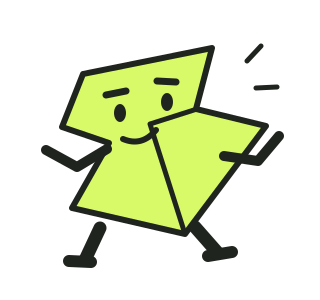
Nudge is our folded-arrow mascot and Chief Get-On-With-It Officer. A little impatient. Mostly on your side.
Click the top-left Do Something logo for the product identity, credits, version, and manual links. Close the dialog with its close button, Escape, or a click outside it. Keyboard focus stays inside while open and returns to the logo afterward.
Make it yours, safely
Adapt every suggestion to your abilities, space, available supplies, and circumstances. Seated or smaller movements count. Stay within a comfortable range, stop if uncomfortable, and skip anything unsuitable. Follow familiar product and food-safety instructions, respect other people and outdoor conditions, and never turn a suggestion into a dare. These are everyday activity ideas, not medical or exercise advice.
To print or save as PDF, open manual.html and use your browser's Print command. The printable version and this Markdown edition contain the same guidance.
78Labs Inc. • Vladimir Darboodi • Angelo Laurent :)
© 2026 78Labs Inc. All rights reserved.